|
netns 可以创建一个完全隔离的新网络环境,这个环境包括一个独立的网卡空间,路由表,ARP表,ip地址表,iptables等。总之,与网络有关的组件都是独立的。: N) H( l" [8 y9 f( r
z P" @+ e6 n5 u8 `0 T5 U创建网络空间: # ip netns add ns1% r3 \0 Z6 C# C! }( n
查看网络空间: # ip netns list
8 R+ ]2 Y( K( m删除网络空间: # ip netns del ns1' U+ d9 I- R- x
进入网络空间执行命令: # ip netns exec ns1 `command`/ R8 l* l- `% u/ E: R1 a: }
3 D6 u6 _5 r X- |; C
实例一:7 i2 ^* j- ?5 A
用netns连接两个隔离环境中的虚拟机,如图: : s4 j2 b. E2 ~6 d7 p' b
在虚拟化中有两个虚拟机网络隔离环境需要通信。 系统: centos7.2 x64 安装程序包# yum install bridge-utils libvirt libvirt-client virt-install virt-viewer net-tools -y# brctl addbr br0# brctl addbr br1# ifconfig br0 up# ifconfig br1 up
3 P7 x* c8 e" U* b1 h! o取消默认nat网络模式# mv /etc/libvirt/qemu/networks/default.xml /etc/libvirt/qemu/networks/default.xml_bak# systemctl start libvirtd* [3 L$ ^3 y3 H1 o/ P8 k- W! B
创建虚拟机并连接至br0# virt-install --name vm1 --ram 512 --vcpus=1 --disk /images/linux/cirros-0.3.5-i386-disk-1.img --network bridge=br0,model=virtio --force --import --nographics --serial=pty --console=pty打开第二个终端创建第二个虚拟机并连接至br1# virt-install --name vm2 --ram 512 --vcpus=1 --disk /images/linux/cirros-0.3.5-i386-disk-2.img --network bridge=br1,model=virtio --force --import --nographics --serial=pty --console=pty# brctl showbridge name bridge id STP enabled interfacesbr0 8000.fe54007e1861 no vnet0br1 8000.fe5400be1885 no vnet1
* q' Y$ G3 b, j { s7 i* t到此,虚拟机已经连接上各自的桥设备了。完成如图:
, A9 U- P6 O/ L/ j' t创建虚拟网络空间:# ip netns add ns1# ip netns listns1; T* ^/ [0 L8 ^0 |5 U! B
接下来创建一张虚拟网卡,虚拟网卡分为前半段和后半段,我们将前半段添加到br0中,并将后半段添加到虚拟网络空间中,这样br0桥设备中主机就能够连接到虚拟网络空间中。 # ip link add net-in type veth peer name net-out# ifconfig net-in up# ifconfig net-out up U, O$ h- i/ D1 i
将net-in虚拟网卡添加到br0中,将net-out虚拟网卡添加到ns1中 # brctl addif br0 net-in查看是否添加成功# brctl show br0bridge name bridge id STP enabled interfacesbr0 8000.46c7e9d2c0fa no net-in vnet0% u& I3 ~# J! U: C
将net-out添加到ns1中,并重命名为eth0# ip link set dev net-out name eth0 netns ns1
" H) H) S5 ?8 @查看是否添加成功# ip netns exec ns1 ifconfig -aeth0: flags=4098<BROADCAST,MULTICAST> mtu 1500 ether a2:07:dc:ba:35:a2 txqueuelen 1000 (Ethernet) RX packets 0 bytes 0 (0.0 B) RX errors 0 dropped 0 overruns 0 frame 0 TX packets 0 bytes 0 (0.0 B) TX errors 0 dropped 0 overruns 0 carrier 0 collisions 0lo: flags=8<LOOPBACK> mtu 65536 loop txqueuelen 0 (Local Loopback) RX packets 0 bytes 0 (0.0 B) RX errors 0 dropped 0 overruns 0 frame 0 TX packets 0 bytes 0 (0.0 B) TX errors 0 dropped 0 overruns 0 carrier 0 collisions 0# ip netns exec ns1 ifconfig lo up6 |; M% @% { r& Y# I- r
现在vm1 --> br0 --> ns1 网络做通了,完成如下图:
; |2 P6 h, a2 s7 {2 `0 |# f同理,和上面操作一样。 # ip link add net1-in type veth peer name net1-out# ifconfig net1-in up# ifconfig net1-out up# brctl addif br1 net1-in# brctl show br1bridge name bridge id STP enabled interfacesbr1 8000.1291a963b290 no net1-in vnet1# ip link set dev net1-out name eth1 netns ns1
$ l h% z9 G# g9 ^2 W5 t: R. ~, U. W$ u
# ip netns exec ns1 ifconfig -aeth0: flags=4098<BROADCAST,MULTICAST> mtu 1500 ether a2:07:dc:ba:35:a2 txqueuelen 1000 (Ethernet) RX packets 0 bytes 0 (0.0 B) RX errors 0 dropped 0 overruns 0 frame 0 TX packets 0 bytes 0 (0.0 B) TX errors 0 dropped 0 overruns 0 carrier 0 collisions 0eth1: flags=4098<BROADCAST,MULTICAST> mtu 1500 ether 02:d4:3c:7d:3b:2e txqueuelen 1000 (Ethernet) RX packets 0 bytes 0 (0.0 B) RX errors 0 dropped 0 overruns 0 frame 0 TX packets 0 bytes 0 (0.0 B) TX errors 0 dropped 0 overruns 0 carrier 0 collisions 0lo: flags=73<UP,LOOPBACK,RUNNING> mtu 65536 inet 127.0.0.1 netmask 255.0.0.0 inet6 ::1 prefixlen 128 scopeid 0x10<host> loop txqueuelen 0 (Local Loopback) RX packets 0 bytes 0 (0.0 B) RX errors 0 dropped 0 overruns 0 frame 0 TX packets 0 bytes 0 (0.0 B) TX errors 0 dropped 0 overruns 0 carrier 0 collisions 0# b2 f( l( ]' z7 X
ip地址配置如下:9 L' y3 w6 }2 L1 L4 }) i) B- R4 w
+ Z5 x- W6 a* t4 I! k0 L# cvm1 - eth0 : 192.168.1.2, O1 |1 P9 p5 L$ b% y0 E
ns1 - eth0 : 192.168.1.1& n, k+ s |4 T( ~. }3 z7 n
/ P, r9 A* C* l) kvm2 - eth0 : 172.168.10.2
% q+ `$ r0 \$ h6 f( Ons1 - eth0 : 172.168.10.1 记住:当宿主机开启了网络转发功能,虚拟网络空间才会开启,在以上场景中,必须开启网络转发功能。 # sysctl -w net.ipv4.ip_forward=1net.ipv4.ip_forward = 1% ]3 G0 P/ W7 }' i
# |) K0 n& i1 B6 R7 W' pvm1 - eth0 网络配置如下: # ifconfig lo up # ifconfig eth0 192.168.1.2/24 up# ifconfig eth0 Link encap:Ethernet HWaddr 52:54:00:7E:18:61 inet addr:192.168.1.2 Bcast:192.168.1.255 Mask:255.255.255.0 inet6 addr: fe80::5054:ff:fe7e:1861/64 Scope:Link UP BROADCAST RUNNING MULTICAST MTU:1500 Metric:1 RX packets:8 errors:0 dropped:0 overruns:0 frame:0 TX packets:2 errors:0 dropped:0 overruns:0 carrier:0 collisions:0 txqueuelen:1000 RX bytes:648 (648.0 B) TX bytes:168 (168.0 B)lo Link encap:Local Loopback inet addr:127.0.0.1 Mask:255.0.0.0 inet6 addr: ::1/128 Scope:Host UP LOOPBACK RUNNING MTU:16436 Metric:1 RX packets:0 errors:0 dropped:0 overruns:0 frame:0 TX packets:0 errors:0 dropped:0 overruns:0 carrier:0 collisions:0 txqueuelen:0 RX bytes:0 (0.0 B) TX bytes:0 (0.0 B)3 B9 |* ?3 {8 D1 N; w
ns1 - eth0 网络配置如下: # ip netns exec ns1 ifconfig lo up# ip netns exec ns1 ifconfig eth0 192.168.1.1/24 up# ip netns exec ns1 ifconfig eth0eth0: flags=4099<UP,BROADCAST,MULTICAST> mtu 1500 inet 192.168.1.1 netmask 255.255.255.0 broadcast 192.168.1.255 ether a2:07:dc:ba:35:a2 txqueuelen 1000 (Ethernet) RX packets 0 bytes 0 (0.0 B) RX errors 0 dropped 0 overruns 0 frame 0 TX packets 0 bytes 0 (0.0 B) TX errors 0 dropped 0 overruns 0 carrier 0 collisions 0/ b, q7 g2 |* A* |7 Y
2 q4 J4 f2 B# u/ S3 Evm2 - eth0 网络配置如下: # ifconfig lo up# ifconfig eth0 172.168.10.2/24 up# ifconfig eth0eth0 Link encap:Ethernet HWaddr 52:54:00:BE:18:85 inet addr:172.168.10.2 Bcast:172.168.255.255 Mask:255.255.0.0 inet6 addr: fe80::5054:ff:febe:1885/64 Scope:Link UP BROADCAST RUNNING MULTICAST MTU:1500 Metric:1 RX packets:8 errors:0 dropped:0 overruns:0 frame:0 TX packets:2 errors:0 dropped:0 overruns:0 carrier:0 collisions:0 txqueuelen:1000 RX bytes:648 (648.0 B) TX bytes:168 (168.0 B)
3 Q" f" R3 H) N! d7 F; X9 N! v' d* `0 E0 e- F8 Q$ ]0 k5 B1 U
ns1 - eth1 网络配置如下: # ip netns exec ns1 ifconfig eth1 172.168.10.1/24 up# ip netns exec ns1 ifconfig eth1eth1: flags=4099<UP,BROADCAST,MULTICAST> mtu 1500 inet 172.168.10.1 netmask 255.255.255.0 broadcast 172.168.10.255 ether 02:d4:3c:7d:3b:2e txqueuelen 1000 (Ethernet) RX packets 0 bytes 0 (0.0 B) RX errors 0 dropped 0 overruns 0 frame 0 TX packets 0 bytes 0 (0.0 B) TX errors 0 dropped 0 overruns 0 carrier 0 collisions 0
4 h O3 i5 ?& `' [1 U# _# {4 x
( [0 P: c- A7 E. [8 G6 V* q为虚拟机指定路由: vm1 :# ping 192.168.1.1 -c1PING 192.168.1.1 (192.168.1.1): 56 data bytes64 bytes from 192.168.1.1: seq=0 ttl=64 time=0.811 ms--- 192.168.1.1 ping statistics ---1 packets transmitted, 1 packets received, 0% packet lossround-trip min/avg/max = 0.811/0.811/0.811 ms# ip route add default via 192.168.1.1* R0 w0 Z) }" k1 s2 O3 \, N
注意:如果ping不通,请检查链路上的网卡状态是否是up状态。 vm2 :# ping 172.168.10.1 -c1PING 172.168.10.1 (172.168.10.1): 56 data bytes64 bytes from 172.168.10.1: seq=0 ttl=64 time=2.385 ms--- 172.168.10.1 ping statistics ---1 packets transmitted, 1 packets received, 0% packet lossround-trip min/avg/max = 2.385/2.385/2.385 ms添加默认路由# ip route add default via 172.168.10.1; a! v) A7 [& x# l; l+ B' M
E9 p' e- g0 @/ ~* v' s! x4 {接下来,使用ping测试。 vm1 - eth0 : 192.168.1.2 --> ns1 - eth1 : 172.168.10.1# ping 172.168.10.1 -c1PING 172.168.10.1 (172.168.10.1): 56 data bytes64 bytes from 172.168.10.1: seq=0 ttl=64 time=0.426 ms--- 172.168.10.1 ping statistics ---1 packets transmitted, 1 packets received, 0% packet lossround-trip min/avg/max = 0.426/0.426/0.426 ms能够达到ns1 eth1网卡,说明ns1从eth0 - 192.168.10.1 转发到了 172.168.10.1vm1 - eth0 : 192.168.1.2 --> vm2 - eth0 : 172.168.10.2
8 V/ m# x$ l/ j0 g9 X! x' Z' \& e. w1 c0 @2 Y$ r
5 _# }3 d2 o4 a% W. _3 R这样,就完成了在宿主机中,两个虚拟主机隔离模式的通信。
( b9 l( v6 I% j0 u0 Y# |' S/ h' B* P* Y* W. X& r( ]
实例二:
5 ?" \) f' V/ ]8 A2 a
7 ?2 r5 y5 \* g' q 说明:宿主机中两组隔离模型,其中只有一组可以访问公网
接下来,在模式一的基础上进行修改:& X, d+ n& T; |) |6 V1 ]. o
4 a# j) h' s" r2 i
# ip netns del ns1! U/ c6 A* a( K1 o5 p' o2 x
0 ~4 W7 a, ^: v) s- w
删除虚拟网络空间模式,所有和虚拟网络空间有关的虚拟网卡都会被删除。 现在的模式如下: : a! s3 i8 o2 u8 b+ c9 c
vm1: 192.168.1.2/249 Y$ B9 R2 Y4 v2 J
vm2: 192.168.1.2/24
% D* F' h2 T( [0 p: V! Y- D. G: q/ xns1: 192.168.1.1/24
% N+ h g$ v' o
; u$ G: c3 X2 c/ O) a# Z( h这里故意把vm1和vm2的ip设置为一样,方便我们进行测试。 添加虚拟网络空间# ip netns add ns1# ip link add net-in type veth peer name net-out# ifconfig net-in up# ifconfig net-out up$ Y# O% q7 K" m# b$ q$ y( e
添加net-in到br0,添加net-out到虚拟网络空间ns1# brctl addif br0 net-in# ip link set dev net-out name eth0 netns ns1为ns1启动网卡并配置ip地址# ip netns exec ns1 ifconfig lo up# ip netns exec ns1 ifconfig eth0 192.168.1.1 netmask 255.255.255.0 up
' X( c* W7 }& C. K为vm1配置网关为192.168.1.1
4 \% H2 V! K% M# a8 J/ v- x' S6 f/ b
3 g. D. r$ v' C: F q. o4 D创建桥设备,并将物理网卡添加到桥设备中,这里建议直接修改物理网卡配置文件 cp -a ifcfg-eno16777736 ifcfg-br-out# vim ifcfg-eno16777736 TYPE=EthernetBOOTPROTO=noneDEFROUTE=yesPEERDNS=yesPEERROUTES=yesIPV4_FAILURE_FATAL=noIPV6INIT=noNAME=eno16777736UUID=100e462e-c0d0-4271-9b5a-1c8e47ff0d03DEVICE=eno16777736ONBOOT=yesBRIDGE=br-out# vim ifcfg-br-out TYPE=BridgeBOOTPROTO=noneDEFROUTE=yesPEERDNS=yesPEERROUTES=yesIPV4_FAILURE_FATAL=noIPV6INIT=noNAME=br-outDEVICE=br-outONBOOT=yesIPADDR=10.0.0.11NETMASK=255.255.255.0GATEWAY=10.0.0.1DNS1=10.0.0.1DNS2=114.114.114.114重启下网络# systemctl restart network物理网卡添加成功# brctl show br-outbridge name bridge id STP enabled interfacesbr-out 8000.000c2923e15d no eno16777736
1 ~* e* j. x- h3 V- n3 u! m. H4 ^0 y- v e9 |6 E
现在创建一对网卡,连接ns1和br-out
/ N& J3 @$ i- G% `! K2 D# ip link add net1-in type veth peer name net1-out# ifconfig net1-in up# ifconfig net1-out up# ip link set dev net1-in name eth1 netns ns1# brctl addif br-out net1-out# brctl show br-outbridge name bridge id STP enabled interfacesbr-out 8000.000c2923e15d no eno16777736 net1-out ~% R" O8 I$ S2 a, |/ r2 B
+ E2 T$ @) [2 i1 V. w1 m' C, ?9 M我真实局域网的ip为10.0.0.0/24& m8 a8 o( k& U' o! W
* D* o8 q9 Q" m9 K! r
因此添加到ns1中的eth1要配置到同网段 # ip netns exec ns1 ifconfig eth1 10.0.0.12 netmask 255.255.255.0 up
@8 C1 d2 K& s# W+ @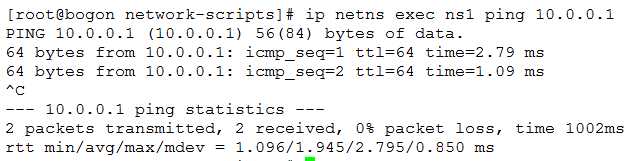
* t% w4 g# f4 i4 W* |能够到达网关了。
* l6 o+ ^3 T2 }* [
2 V, }8 O* u! ?& D" ^) t6 t5 u已实现如下: 9 [* Y3 k" P" q/ `) f
在ns1中添加源地址转换 # ip netns exec ns1 iptables -t nat -A POSTROUTING -s 192.168.1.0/24 ! -d 192.168.1.0/24 -j SNAT --to-source 10.0.0.12# ip netns exec ns1 ip route default via 10.0.0.1
0 N+ f7 X& X% ^再次通过vm1 ping 公网ip
6 j5 T: {% o) R
7 p1 R+ B9 t1 e: F这样就实现了宿主机内部分网络中的主机可以访问公网,部分主机没有访问公网权限。
U3 c o$ k0 e e/ H总之,网络逻辑很重要。 8 F2 }( I) o/ x: y) n$ _5 ~
|





 发表于 2019-6-21 15:02:52